
Effective January 23rd, 2026: After your initial device login, a Windows Hello pop-up will prompt you to set up a biometric login and 6-digit pin. Windows Hello is a more personal way to sign in, using your face, fingerprint, or a PIN. The set-up wizard takes less than 5 minutes and walks you seamlessly through the steps.
The use of biometrics is completely voluntary, so you can choose ‘Skip for Now’ and create your PIN.
Windows Hello fingerprint login should now be enabled on your device. If you haven’t received the automatic prompt to set it up, you can enable it manually by navigating to:
Step 1
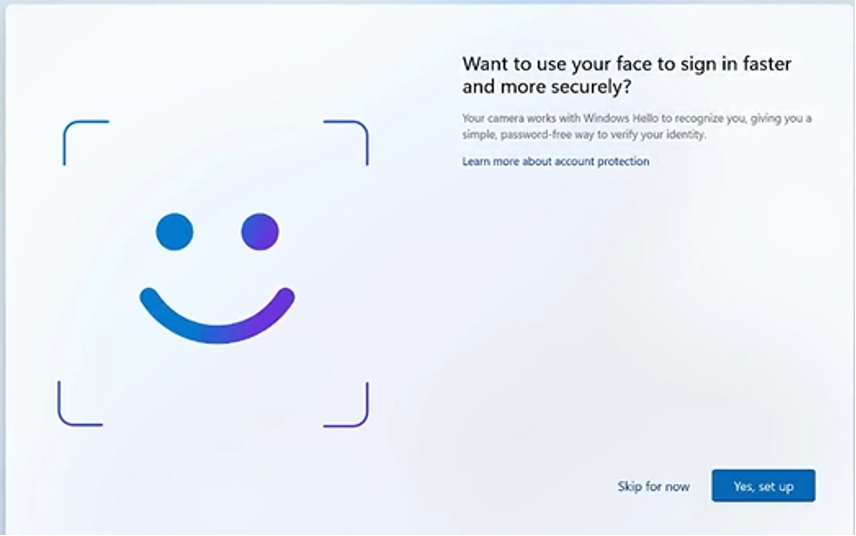
This screen will appear asking if you’d like to set up Windows Hello for Business. If you’d like to do so, ensure that your Webcam is open (no red dot) and click Yes, set up.
You can select Skip for Now (go to Step 4 here to set up your PIN). Click HERE to learn more about Windows Hello for Business.
Step 2
Your webcam will automatically start, keep looking at the camera. If you change your mind, you can still click Skip for now.

Step 3
When setup is complete, a confirmation message is displayed. Click Next.
Step 4
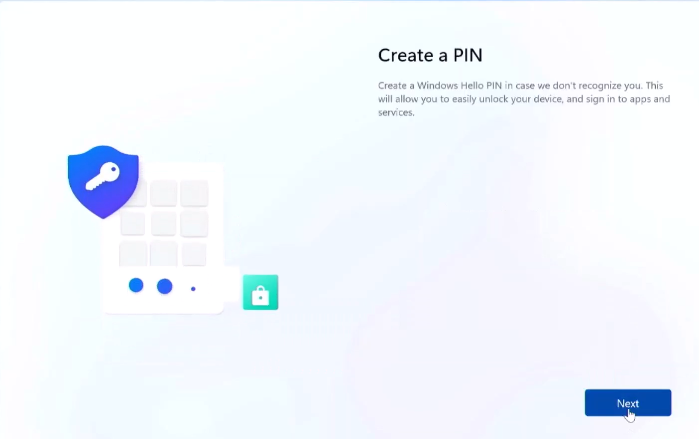
Now, you’ll create a PIN. If you choose not to use the facial recognition, then you will be able to log in with your PIN. Creating a PIN is a required step. Click Next
Step 5
Enter your Workforce email address and type your Temporary password and click Sign On.
Step 6
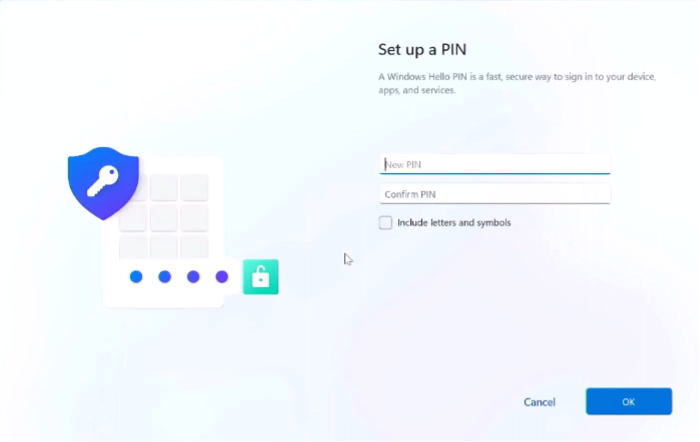
Decide what you’ll use for your 6 digit PIN and check the box if you’d like to include letters and symbols. Enter your New PIN and enter it again to confirm. Hit OK.
Step 7
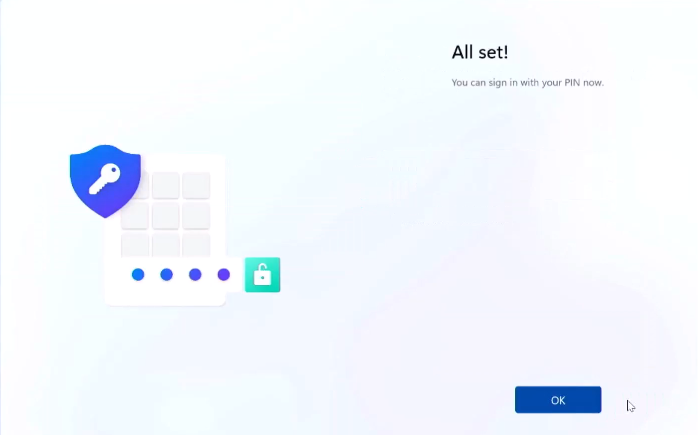
You’ll receive confirmation, click OK.
Comments
0 comments
Please sign in to leave a comment.