
https://www.makeuseof.com/microsoft-teams-keeps-crashing-windows/
Clearing Teams Cache
- If Teams is still running, right-click the Teams icon in the taskbar, and then select Quit.
- Open the Run dialog box by pressing the Windows logo key + R
- In the Run dialog box, copy/paste:
- new Teams app: C:\Users\%username%\AppData\Local\Packages\MSTeams_8wekyb3d8bbwe
- classic Teams app: %appdata%\Microsoft\Teams
- Delete all files and folders in the directory.
- Restart Teams.
Update Microsoft Teams
- Open Microsoft Teams on your computer.
- Click on the three dots button at the top right.
- Select Update and restart Teams. In some versions, you need to click on the profile icon and select Check for updates.
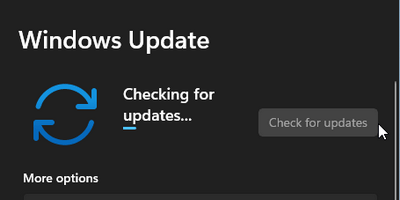
If this didn’t work, you can also try to fix Microsoft Teams crashing Windows 11 by updating your system: open Settings -> select Windows Update -> click Check for updates -> wait.
Repair or Reset Microsoft Teams
- Open Settings.
- Select Apps from the left.
- Click Apps & features from the right.
- Browse the apps list to find Microsoft Teams.
- Click on the three dots button and select Advanced options.
- Click on the Repair or Reset button under the Reset section.
Uninstall and Reinstall Microsoft Teams
- Follow steps 1 ~ 4 mentioned in the previous fix.
- Click on the three dots button and select Uninstall.
- Click Uninstall to confirm and wait.
Then, you should download & install Microsoft Teams from Microsoft Store or the official website.
Disable and Re-enable the Graphics Driver
- Press Windows + S.
- Type Device Manager and press Enter.
- Expand Display adapters.
- Right click on the graphics driver.
- Select Disable device.
- Right click on the drive and select Enable device.
Comments
0 comments
Article is closed for comments.